Managing meetings using in-call controls in the Pexip apps
There are various things you can do to manage your video experience when you're using one of the Pexip apps to make a call.
Some of the features are only available to the room owner, as indicated below. Any keyboard shortcuts are also indicated where available.
| Feature and keyboard shortcut | How to use itFeatures and how to use them |
|---|---|
|
or p to present/share your screen |
|
|
Dial pad
or press any number 1 - 9 to send that number and open the dial pad |
|
|
Full screen on/off
or f to toggle |
|
|
Display chat
|
|
|
Float window on top on/off
|
This feature lets you fix the Pexip desktop app window in front of all other windows, meaning that if you select another window you keep sight of the Pexip desktop app window and the video meeting you're in. |
|
Device settings
|
|
|
Lock room
|
|
|
Admit a participant from the lobby
|
|
|
Invite someone by dialing
|
|
|
Invite someone by sharing a link
|
|
|
Show participants
|
|
| Copy advanced room info |
Copy Advanced room info
|
|
Mute a participant's microphone 
|
|
|
Disconnect a participant 
|
|
|
Mute all
|
|
|
Disconnect all
|
|
|
Mute/Unmute microphone
or m to toggle |
|
|
Disconnect from call
|
From the toolbar below the main video window, select . This disconnects you immediately. |
|
Disable/Enable camera
or c to toggle |
|
|
/ or s to toggle |
/Hover your mouse over the self-view window and the button appears. Select and the self-view window is replaced by |
| Re-position self-view |
Re-position self-viewSelect the self-view window and drag it to a different place on your screen. This can be useful when someone else is presenting. |
|
|
|

 .
.







 to see a list of participants currently in the meeting, plus at the top of the list, those participants who are waiting in the lobby.
 next to the matching entry.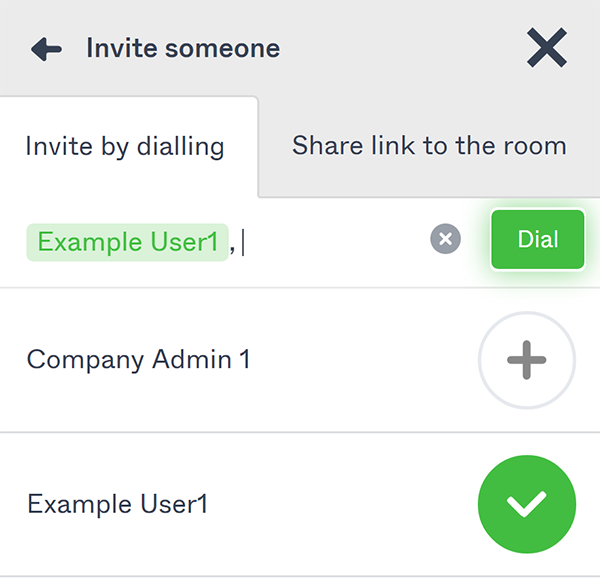
 menu. Select
  .
. .
.





 which you can select if you want to reinstate the self-view window.
Keyboard Shortcuts
When using the Pexip desktop app or Pexip web app, a set of keyboard shortcuts are available. You can select:
- to present / share your screen
- any number to send that number and open the dial pad
- to toggle full screen on/off
- to toggle your microphone on/off
- to toggle your camera on/off
- to toggle your self-view on/off