Joining a Google meeting via a Zoom Room
Pexip Connect for Zoom Rooms enables Zoom Rooms and Zoom-registered Cisco/Poly systems
It provides Zoom users with a familiar SIP video experience when connecting into Google meetings from Zoom Rooms. The service supports dual screen video and content sharing.
To get the Pexip join/meeting experience, the company/domain hosting the Google meeting must be enabled for Pexip interoperability (the meeting invitation must contain a SIP address in the format <digits>@<domain>).
This article covers
- Supported Room types
- Licensing requirements
- Calendar settings
- Configuring Zoom for Pexip interoperability
- Usability and troubleshooting help
- Pexip Connect for Zoom Rooms meeting experience
- Screen sharing settings — important for wireless sharing
Supported Room types
The following Room types are supported:
- Windows, Mac, and Android Appliance Zoom Rooms systems that run Zoom Rooms software version 6.3.5 or later.
- Cisco/Poly SIP rooms using Zoom One Button to Push.
Licensing requirements
Pexip Connect for Zoom Rooms has the following licensing requirements:
- Your Pexip Connect for Zoom Rooms license count (minimum 10) must match your Zoom Room plus Cisco/Poly Room count.
Additional information:
- Pexip reserves the right to audit your Zoom Room count twice a year. Such an audit can consist of requesting a screenshot from the Zoom admin center showing license count.
-
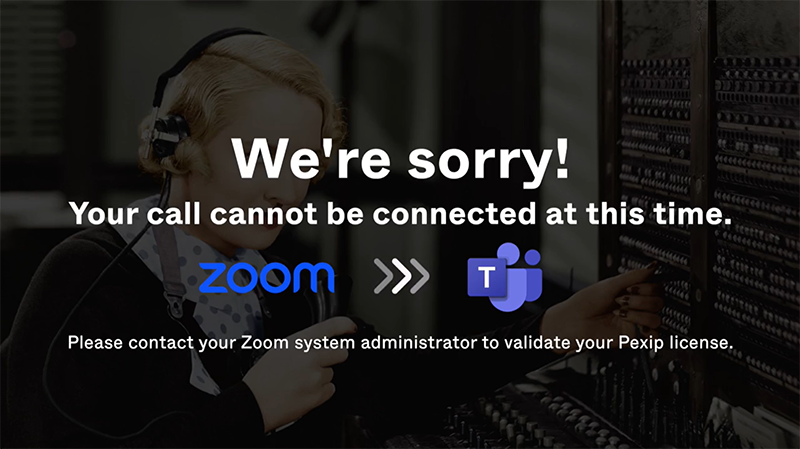
If somebody without a valid license plan tries to place a call they are shown a screen saying their call cannot be connected and they should contact their Zoom system administrator to validate their Pexip license.
Calendar settings
One-Touch Join is supported in meetings with SIP details in Google Calendar and Microsoft Exchange.
When using Microsoft Exchange, to support One-Touch Join, the invitation must come from a Microsoft Exchange server whose calendar processing settings for room resources have the DeleteComments property set to False, and the ProcessExternalMeetingMessages property set to True.
Configuring Zoom for Pexip interoperability
You enable interop via the Zoom admin portal.
For Zoom Rooms:
- Go to .
-
Enable Support Interoperability for Zoom Rooms.
You have to lock the settings if you want to ensure they are applied to all Zoom Rooms (and thus override any individual room settings).

-
Adjust the Preferred interoperability meeting connection method so that Use SIP to connect is the top priority.
- You should also ensure that you comply with the Zoom Room firewall requirements.
Disabling waiting rooms
We recommend that you disable waiting rooms.
You cannot disable waiting rooms globally, but they can be changed per region via the Zoom admin portal:
- Go to and choose a region.
- Within the tab > section you can turn off the Waiting Room for the rooms in this region.
- Repeat this for all regions to apply the settings for all rooms. (It can also be set per room, if required.)
Optimizing geographic routing for dial-out
By default Zoom Rooms exit the Zoom network in the US. If you want to change this (i.e. if you are not in the US), you can nominate which geographic region to use when dialing out via H.323 or SIP from your Zoom Rooms and user clients. This will typically reduce the latency as the call to the Pexip Service will stay in a region closer to the Zoom Room placing the call.
We recommend that customers in European countries should set Netherlands as your call-out location.
To do this, from within the Zoom portal you need to enable the Customize data center region for H.323/SIP call-out option, and then select the CRC Gateway you want to use.
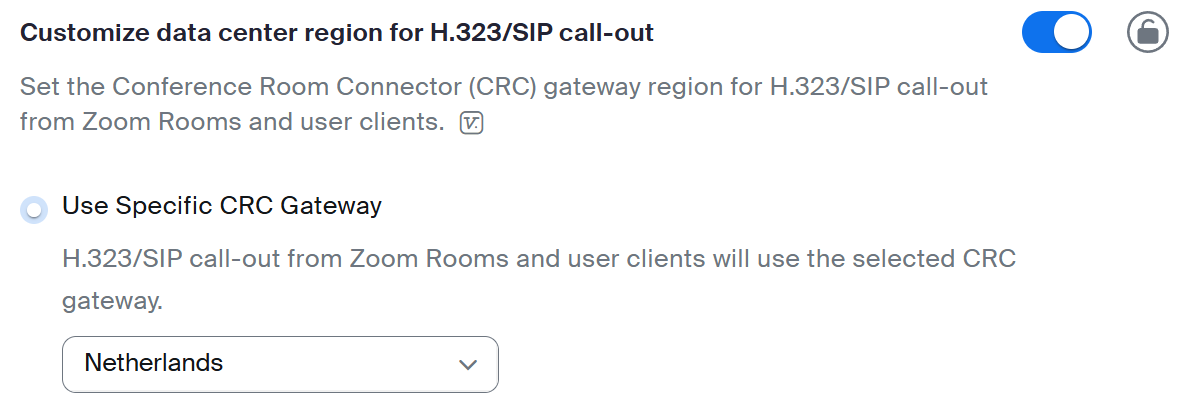
The CRC Gateway can be set company-wide in account settings, or in the Zoom Rooms menu (via the option) where it can be set in the room hierarchy or on an individual Zoom Room.
We recommend that you organize your Zoom Rooms in a hierarchy (e.g. by country, city, building as appropriate) so that you can the apply routing per country in a simple manner.
Enabling Full HD (1080p)
If you have the Full HD (1080p) add-on then there is additional configuration to ensure your Zoom Room or SIP/H.323 system can use Full HD:
- Make a request to Zoom support to enable Full HD 1080p on your account.
-
Enable 1080p in the Zoom portal:
- For Zoom Rooms: in , set Meeting-HD Video Quality to Full HD (1080P)
- For Cisco/Poly systems: in , set DTMF Command to 309.
Usability and troubleshooting help
This section contains some usability and troubleshooting guidance.
Firewall/ports connectivity issues
The Zoom Room must be able to dial out via SIP. To test this, place a manual SIP call to a known good address, for example test@pexip.me:
- Tap on the Zoom Room controller.
- Tap the arrow to the right of .
- Tap .
- Enter test@pexip.me, tap , then tap .
If this call fails to connect, check the Zoom Room firewall requirements, or contact Zoom to troubleshoot before continuing with the Pexip setup.
For Zoom SIP registered devices, it may be necessary to adjust firewall ports to allow RTP media over UDP to the destination IP addresses shown in Pexip's firewall rules guidance.
Pexip Connect for Zoom Rooms meeting experience
The meeting uses Pexip's Adaptive Composition layout (real-time automatic face detection and framing).

We recommend the following display/layout configurations for Zoom Rooms with 2 displays:
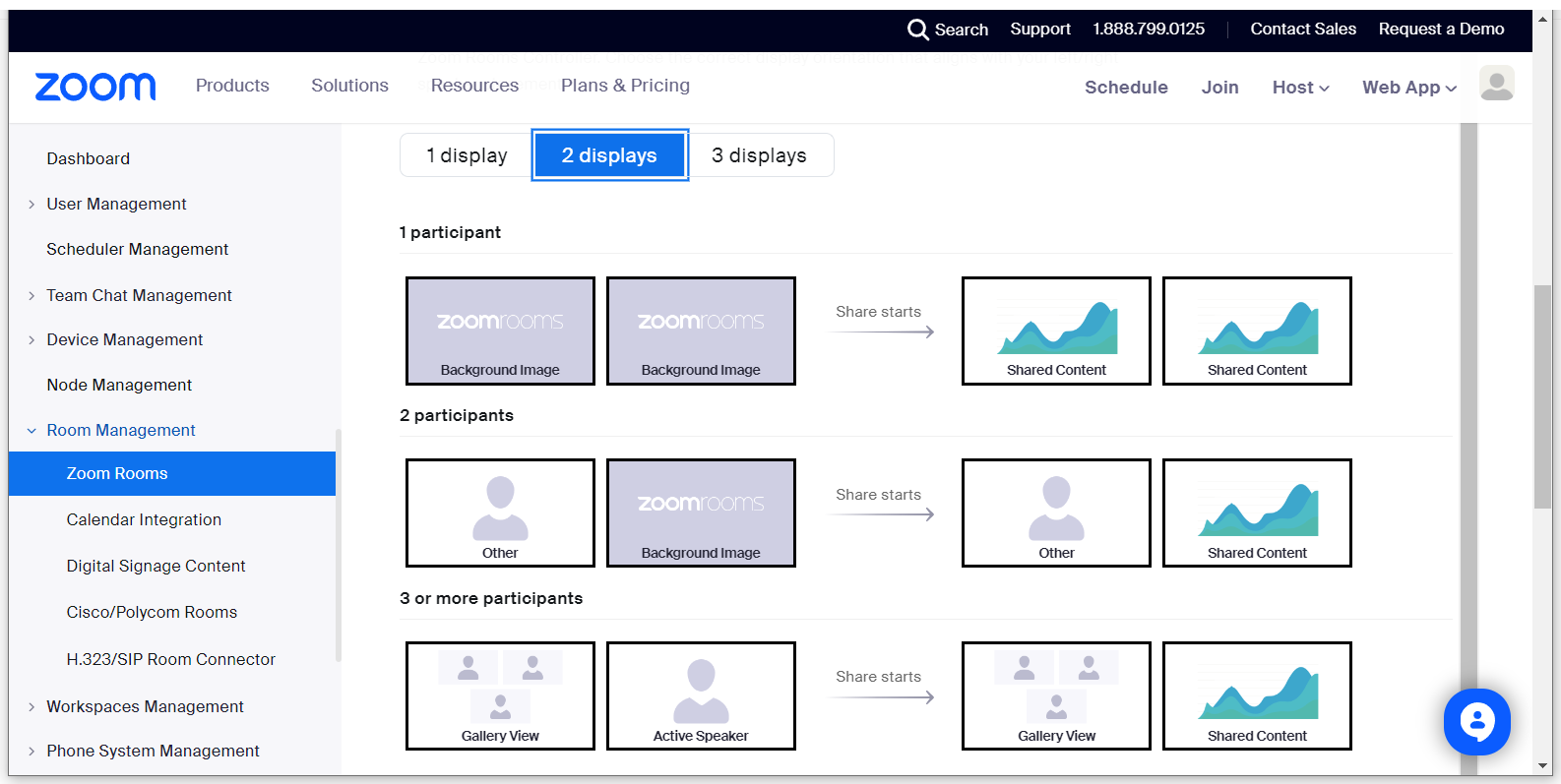
Similarly for single screen displays, we do not recommend setting the 2 participants layout to Gallery View as this will show your own Zoom Room self view on half of the screen, and the remote feed from Pexip on the other half. The Pexip interop service detects it is a single screen endpoint, thus it will share any content as part of the layout mix, and therefore the endpoint will never enter the "share starts" setup.
Screen sharing settings — important for wireless sharing
Screen sharing settings can be changed globally, and some can be changed per Zoom Room — you need to decide the most appropriate method. We recommend the following settings:
- How many participants can share simultaneously: select One participant can share at a time.
- Who can share: select All Participants.
- Who can start sharing when someone else is sharing: select All Participants (if you are not able to take over presentation with, for example, wireless sharing).
During a meeting you can also access these settings (to apply to that meeting only) via the cog wheel on the panel.