Scheduling and joining meetings using One-Touch Join
This topic explains the process of using One-Touch Join to schedule meetings, and how to join them using Cisco and Poly endpoints.
Using One-Touch Join in meeting rooms
When One-Touch Join is configured for your organization and enabled on your Cisco or Poly endpoint (both done by an administrator), you don't need to do anything special in order to use it — everything happens automatically:
- You or the meeting organizer creates a meeting invitation in Outlook in the usual way. This includes any invitations that are created by using add-in buttons, for example for Pexip scheduled meetings or for Webex.
- Add the meeting room to the invitation as a room resource.
- Each endpoint in each meeting room displays a list of scheduled meetings for that room. When a meeting is due to start, the endpoint in the room will show a or button.
- When you are ready to join the meeting, just press the button. The endpoint will dial into the meeting.
Joining from the endpoint
The way in which you join an OTJ meeting depends on the type of endpoint.
Endpoints will display any meetings scheduled to start within the next 48 hours, up to a maximum of 10 meetings.
- Cisco endpoints
- Poly endpoints
- Supported endpoints display a Scheduled Meetings button on the touch panel which opens a list of all scheduled meetings that the video system has been invited to.
-
Shortly before a meeting is due to begin, a notification with a option appears on the touch panel, and the endpoint also displays a option from within the Scheduled Meetings list:
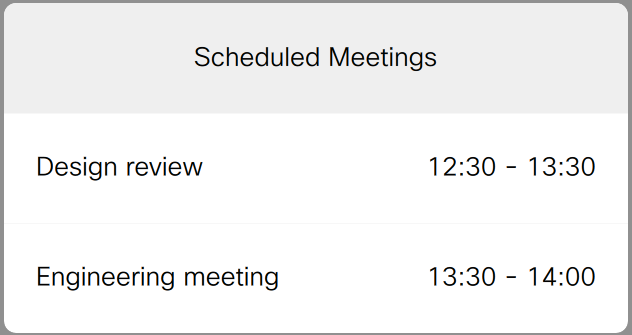
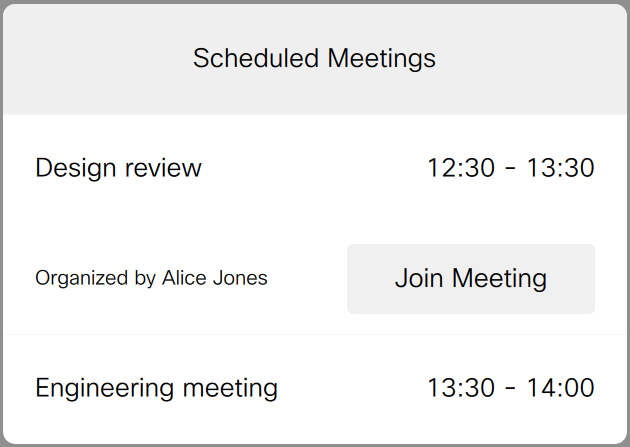
The timing for when this button appears is configurable per endpoint by an administrator using the Configuring One-Touch Join setting.
-
In addition to the button in the scheduled meetings list, shortly before a meeting is due to start the endpoint displays an Upcoming meeting notification:
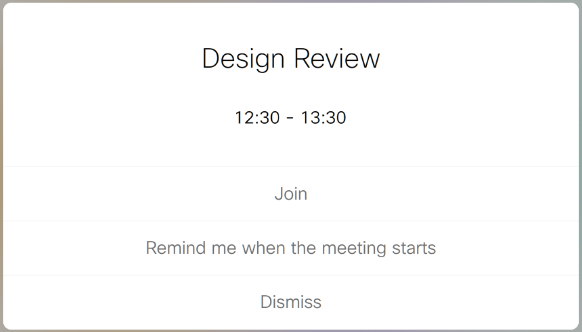
You can choose to:
- the meeting now.
- Select to get another notification at the scheduled start time.
- this and any subsequent notifications for this meeting. You can still join the meeting from the endpoint's Scheduled meetings list.
The timing for when this button appears is configurable per endpoint by an administrator using the Configuring One-Touch Join setting.
-
If you selected , at the meeting start time, the endpoint displays another notification:
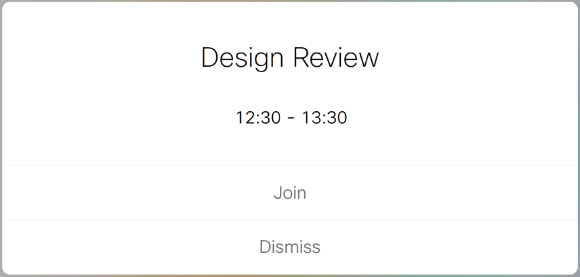
You can choose to:
- the meeting now.
- the notification — in which case you won't be reminded again, but you can still join the meeting from the endpoint's Scheduled meetings list.
-
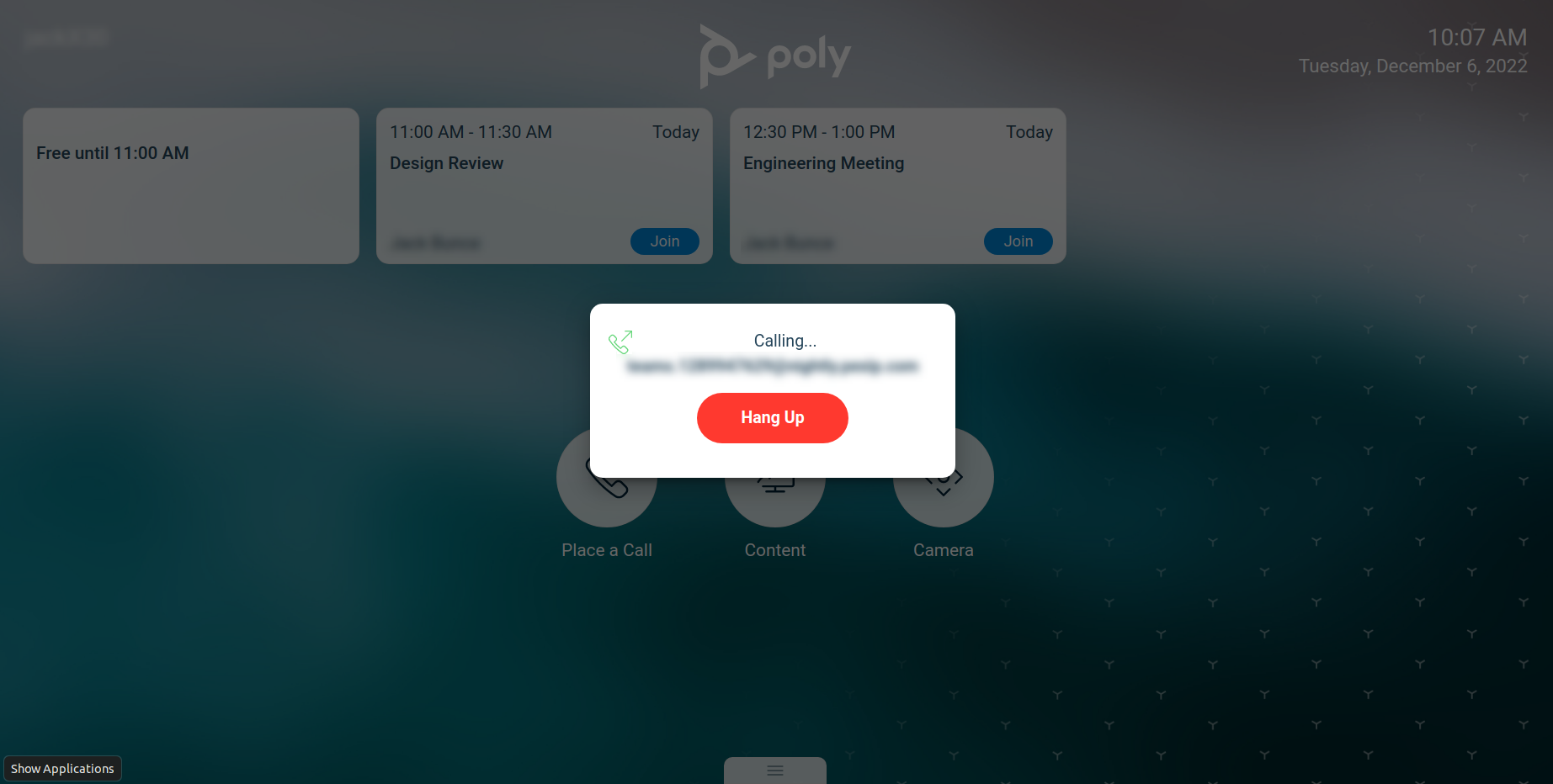
Each endpoint in each meeting room displays a list of scheduled meetings for that room. Shortly before a meeting is due to start, a button appears in the list:
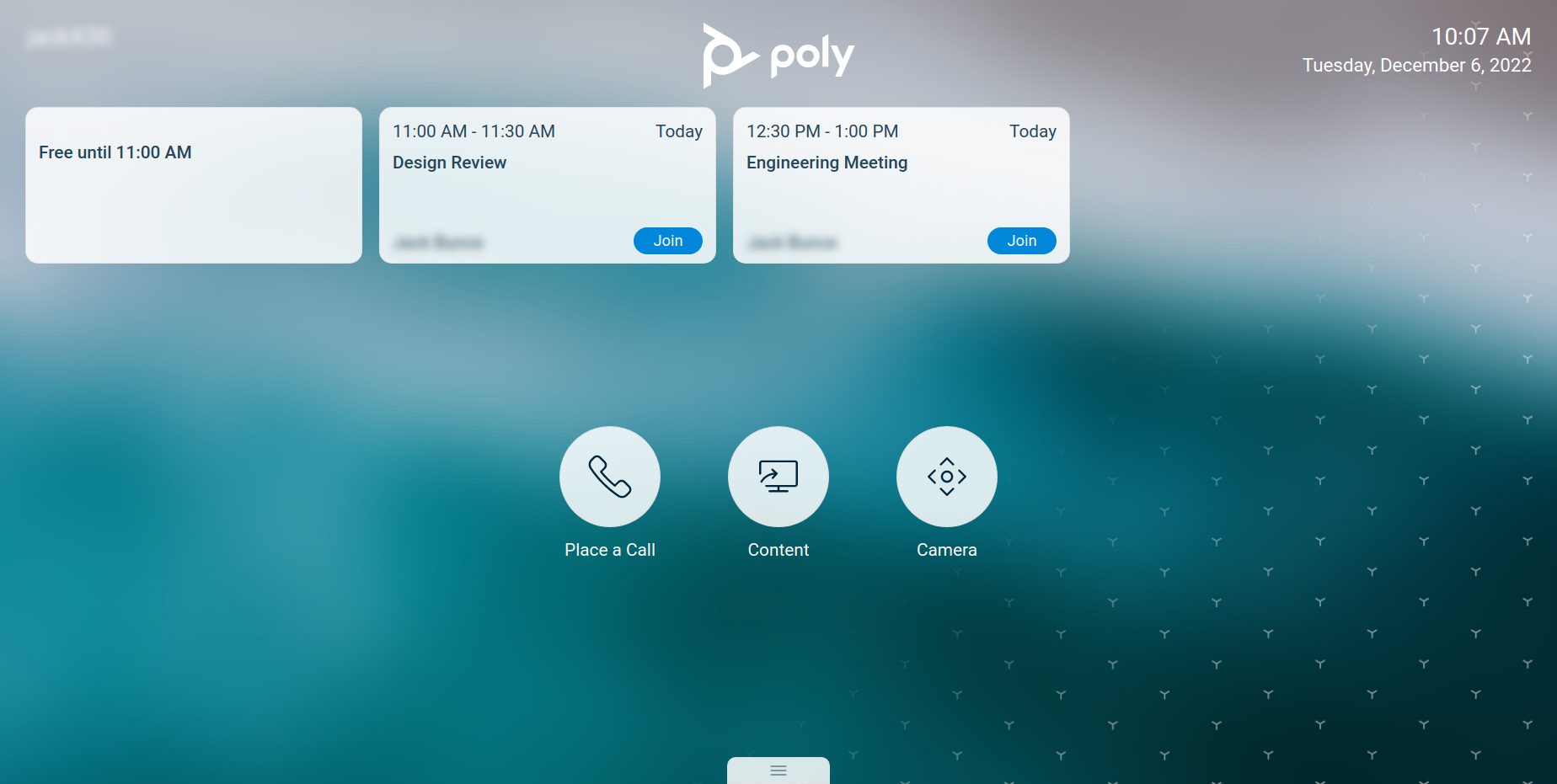
The timing for when this button appears is configurable on each endpoint.
-
Select the button to dial in to the meeting: